· 8 min read
How to Get Verse Working in UE6
Epic shipped `ue6-main` with Verse in it, but it isn't actually wired up out of the box. Here's how to get it running.

Epic just pushed the ue6-main branch, and Verse is finally in there.
Well… sort of…
Sync the engine, write a .verse file, and you’d expect it to behave like UEFN. It won’t. Most of the Verse stack is present, but the normal project-side setup that makes it useful isn’t hooked up yet.
It feels like the engine has all the parts installed, but it looks like they rushed the heck out of this release for Unreal Fest.
So you’ll have to wire it up yourself. The plugins, source, config, and a few places where Epic clearly expected Valkyrie to handle the hard part all need attention. Follow the steps below and you’ll get it actually working.
Before You Start
Make sure you have a few things in place before following along:
- You’ve downloaded the ue6-main branch from the Unreal Engine source.
- The engine compiles successfully and you can open the editor without errors.
- You’ve created a new UE6 project to work in.
Everything below assumes you’re starting from a clean, compiling ue6-main project.
Enable the Required Plugins
Enable all of the plugins with “Verse” in the name, except “Verse State Tree Editor”. It relies on a plugin called “Verse State Machine” which isn’t public yet.
Enable the following plugins:
- Verse
- Verse Colors
- Verse Engine
- Verse Experimental
- Verse Gameplay Debug
- Verse Persona Metadata
- Verse Print
- Verse Restricted
- Verse Simulation
- Verse Simulation Metadata
- Verse Spatial Math
- Verse Tags
- Verse Interface
- Verse Modifier
- Verse Module Independence A
- Verse Module Independence B
- Verse VM
- Entity Framework
- Solaris
- Editor Data Storage
- Editor Data Storage Features
- Unreal Engine Experimental
Note: Enable
Unreal Engine Experimentaltoo. The
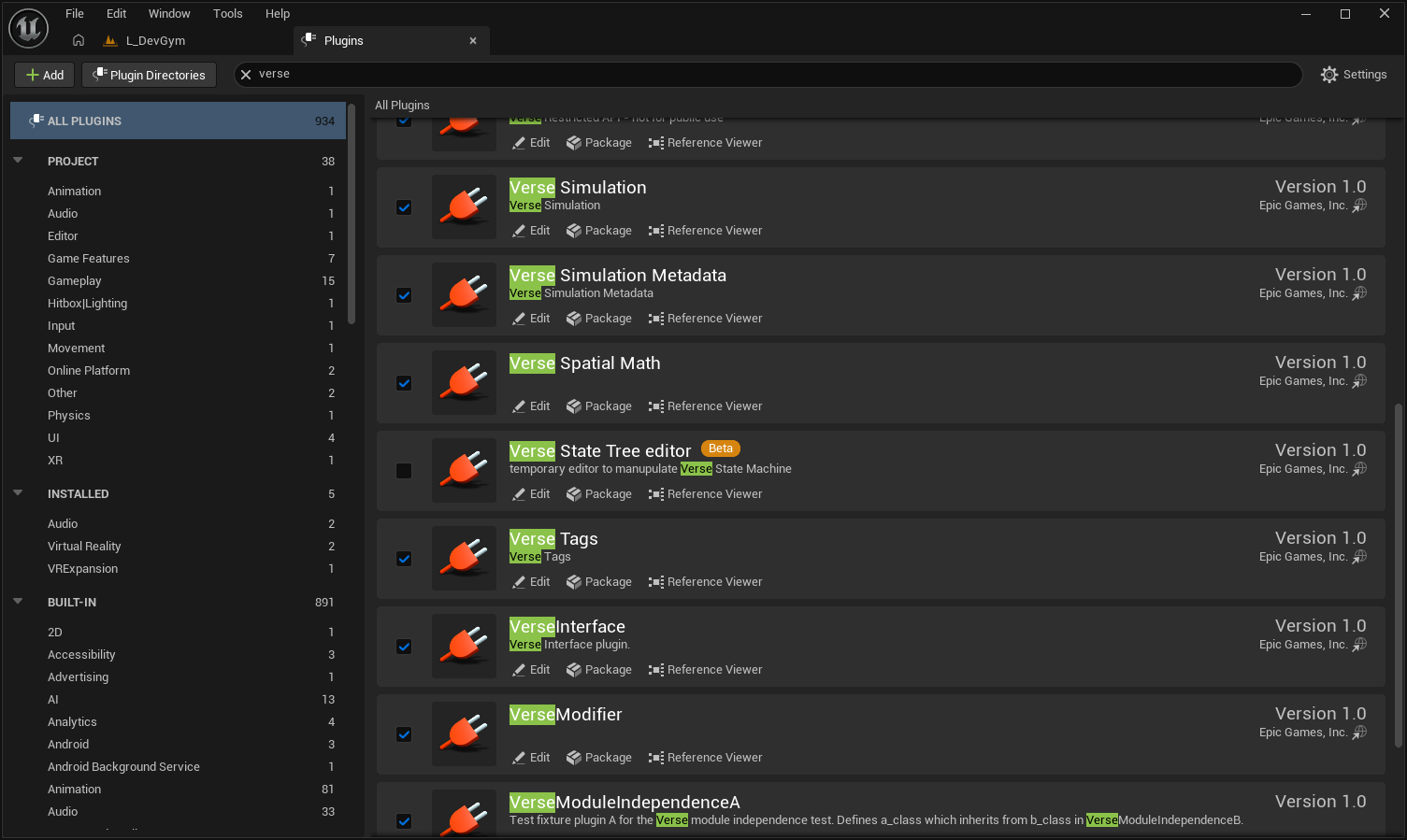
Restart the editor. It’ll at least acknowledge that Verse exists. That doesn’t make a normal UE6 project behave like UEFN, but it’s the first thing that has to happen.
Set some ConsoleVariables
The plugins alone aren’t enough. There are a handful of ini settings to enable before the Verse toolchain starts waking up.
UEFN already has these baked into its project defaults, so you never really see them there. In a fresh UE6 project, you set them by hand. Some of these are just there to play around and test. Enable/disable them and see what works/stops working for fun. For example, you probably don’t need one-file-per-entity to get it started and working, but why not experiment a little.
These are the settings that get it to feel like UEFN.
// --- Config/DefaultEngine.ini ---

[ConsoleVariables]
; Forces the default outliner to use TEDS.
Valkyrie.UseTedsOutliner=1

TEDS.Enable=1
TEDS.Feature.Folders=1
TEDS.Feature.Folders.TypedElements=1
TEDS.UI.SetOutlinerPurpose=HybridOutliner
TEDS.UI.UseTedsOutlinerFolders=1
TEDS.RevisionControl.AutoPopulateState=1
TEDS.UI.UseNewRevisionControlWidgets=1
TEDS.UI.Outliner.ShowTedsColumnFilters=1
TEDS.UI.UseNewWidgets=1
TEDS.Feature.PickerEnabled=1
TEDS.Feature.UnloadedActors=1
TEDS.UI.EnableTedsContentBrowser=1
TEDS.UI.EnableTestContentSource=1
TEDS.AssetDataStorage=1
TEDS.TedsAssetDataFactory=1
TEDS.AssetDataStorage.Metadata=1
Teds.Feature.Alerts=1
TEDS.Feature.ActorCompatibility.ActorComponents.Enable=1
TEDS.UI.UseDefaultAttributeBindings=1
TEDS.Feature.Layers=1
; Disables using an Actor as a proxy for the prefab/entity and just uses scene graph.
SceneGraph.EntityProxyActors.Enabled=0
;SceneGraph.EnableCardLayout=1
SceneGraph.SelectTransformComponentByDefault=1
Entity.EnablePrefabEditMode=1
DetailsPanel.Overrides.EnableResetToDefault=1
EntityDetailsDisplayManager.LegacyTrimPropertyPathImplementation=1
; One-file-per-entity (external packages per entity). Read-only: startup-only, requires restart.
; OneFilePerEntityEnabled is the master; the other two are no-ops unless it is on.
Entity.OneFilePerEntityEnabled=1
Entity.OneFilePerEntityOnAllInstancesEnabled=1
Entity.OneFilePerPrefabEntityEnabled=1
EntityEditor.EnableAssetComponentSupport=1
EntityPrefabEditor.EnablePrefabThumbnails=1

; Enables thumbnail rendering and many other Prefab/Entity things
IDO.Enable=1
Note: Restart the editor after editing
DefaultEngine.ini. These settings are only read at startup, so nothing changes until you relaunch.
Verse can’t exist in your Content folder… Yet.
In UEFN, you can put Verse files directly in your project (though, it’s technically a GameFeaturePlugin) and they get discovered automatically.
It doesn’t work in ue6-main. A verse “Project” is never created for your game.
This appears to not work because the code that would register the game is missing. From what you can piece together via comments, that path is tied into Epic’s internal Valkyrie runtime.
UEFN has Valkyrie doing that work for it. ue6-main doesn’t.
So instead of trying to make Content do something it currently has no code path for, give Verse its own plugin. A plugin with a Verse module and a VersePath is something Solaris already knows how to mount, without Valkyrie being involved.
I did this using a GameFeaturePlugin, as I assumed it matches closest with how UEFN is set up. I recommend doing the same for your first test.
To create one, open the Plugins window from the Edit menu, click “Add”, and choose the “Game Feature (Content Only)” template. Give it a name and create it.
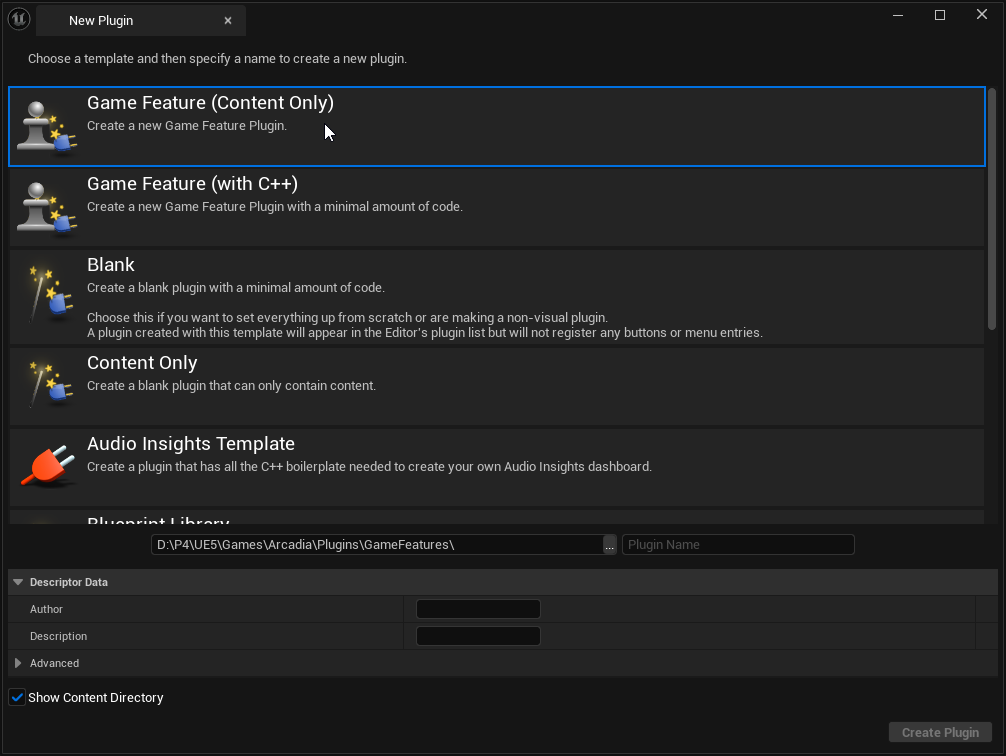
Add this code to your newly created GameFeaturePlugin’s .uplugin file:
Note: Replace {PLUGIN NAME} with the name of your GameFeaturePlugin.
// START OF .uplugin file...
{
	"FileVersion": 3,
	"Version": 1,
	...

	// ADD THE FOLLOWING CODE
	"CanContainVerse": true,
	"VersePath": "/localhost/{PLUGIN NAME}",
	"VerseScope": "InternalUser",
	"VerseVersion": 0,
	"EnableVerseAssetReflection": true,
	"EnableSceneGraph": true
}
It’s not as clean as just dropping code into Content, but it works.
Restart your editor. Open up the VerseExplorer window and you should now see a module created for your GameFeaturePlugin.
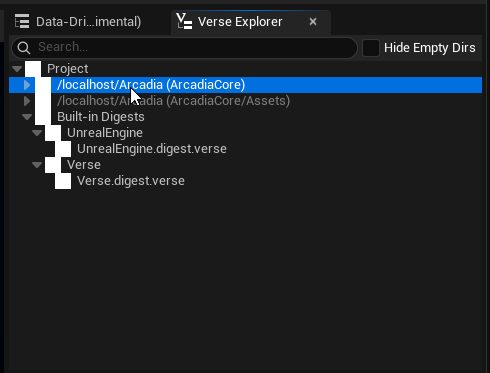
My test plugin was called “ArcadiaCore”
Create your first Verse File
Right click on your plugin’s new module and “Create a new Verse File”.
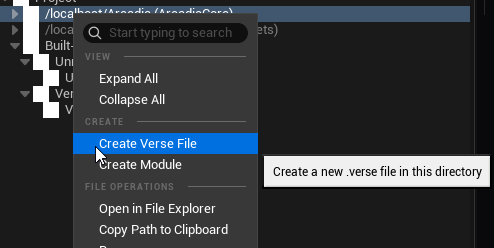
Keep it simple. Create a “Scene Graph Component”
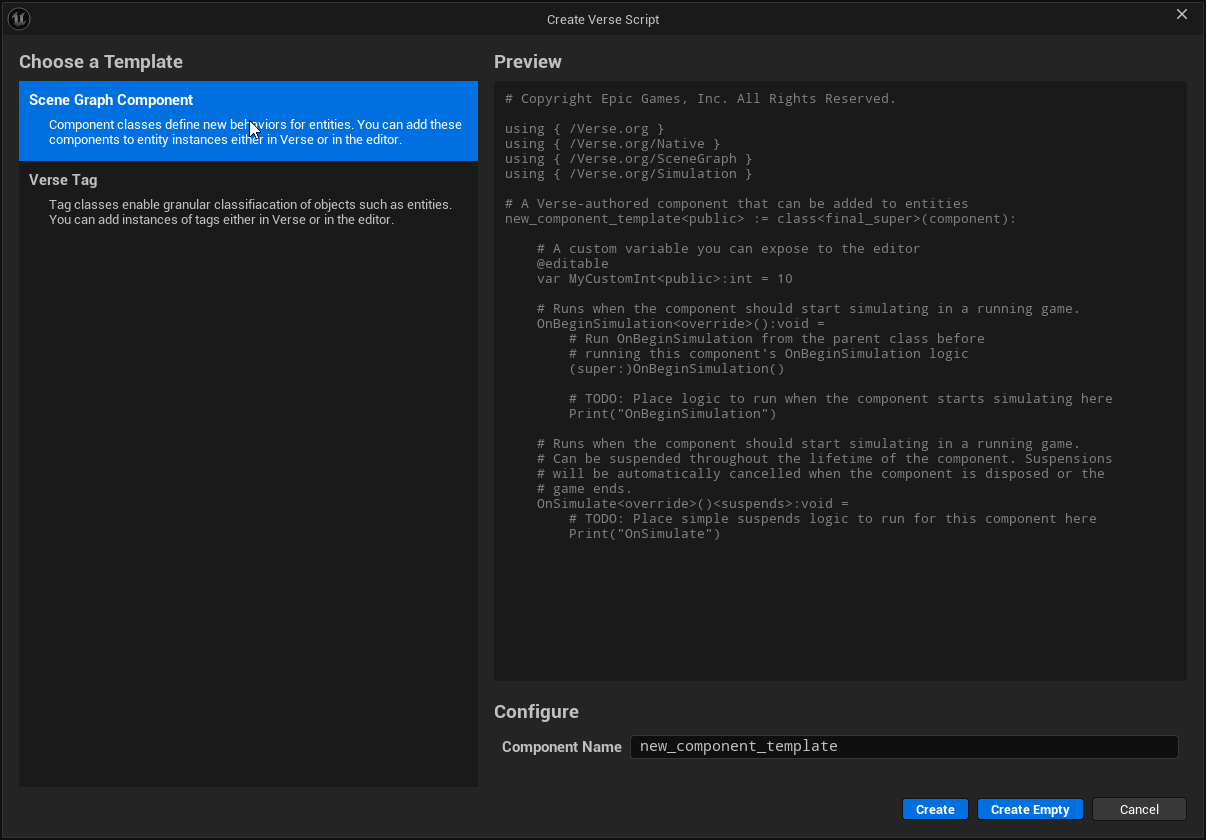
You can now double click on your new verse file to open it in VSCode!
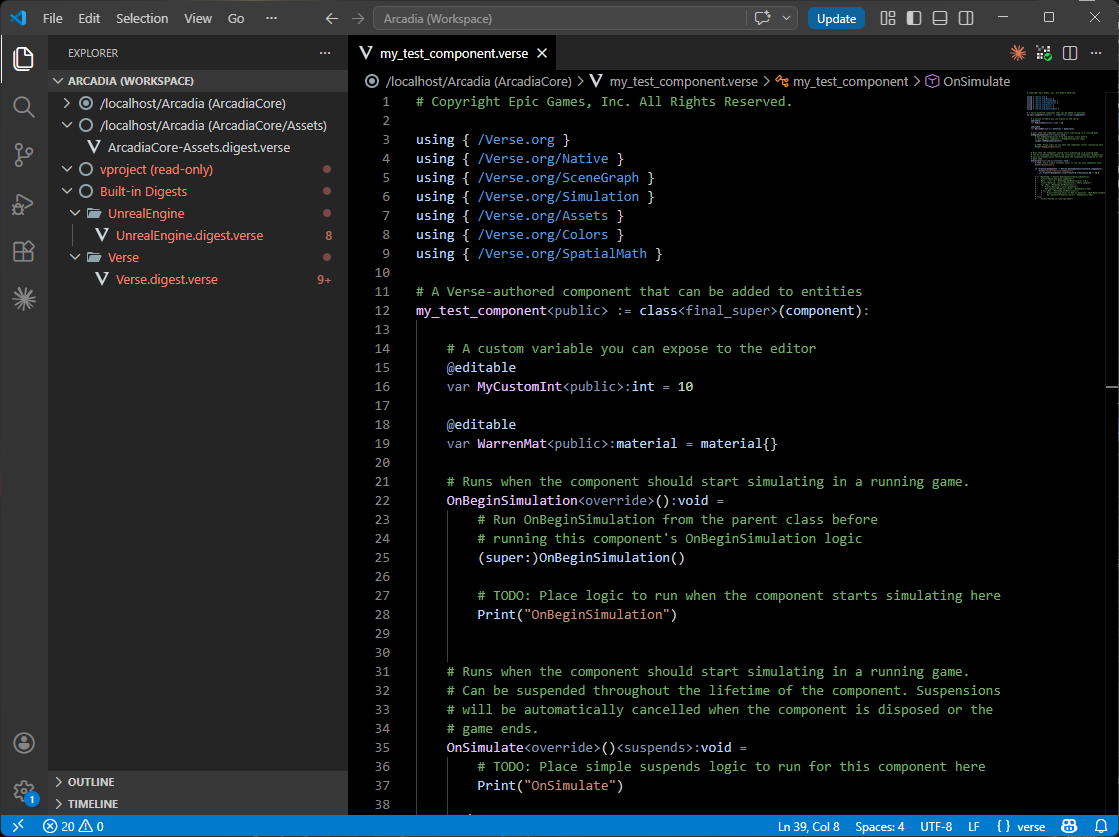
Add the Verse plugins to VSCode
Your VSCode probably doesn’t look like my screenshot, or what you’re used to in UEFN. We’re missing Epic’s two plugins for VSCode. “UnrealRevisionControl” and most importantly “Verse”.
These are automatically installed into your VSCode instance when you open your project on UEFN. This fails for ue6-main, but we can fix it.
The engine will look for the plugins and attempt to install them into VSCode automatically, we just need to put them in the correct spot. We’re going to copy them from an install of UEFN and add them to our engine.
Make sure you have UEFN installed locally. Copy the VSCode plugins “URC.vsix” and “Verse.vsix” from it.
Their location is: C:\Program Files\Epic Games\Fortnite\VSCode\... or wherever you installed Fortnite.
Feel free to copy the VSCode installers as well. With those copied, the editor will automatically install VSCode when you go to open Verse code if it’s not already installed.
In your copy of ue6-main, create a new folder called “VSCode” at the root. Next to the folders: “Engine”, “Samples”, “Templates”…
Place your copies of “URC.vsix” and “Verse.vsix” into that folder.
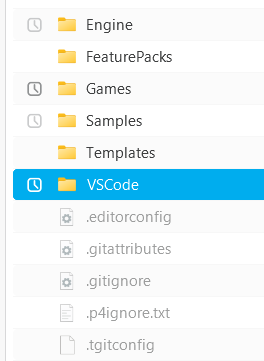

Close existing VSCode instances. Now when you open your Verse code from the editor, the plugins should automatically install! If not, you can just manually install them by dragging them onto the VSCode window. 😉
I WANT TO SEE IT WORKING
Let’s get this verse script actually working! We’re going to attach this component we made to an entity and drag it into our level. When we Play-In-Editor, we should see it print to our Output Log.
First, open your Content Browser and create a new Prefab in your GameFeaturePlugin. This will hold the entity we need.
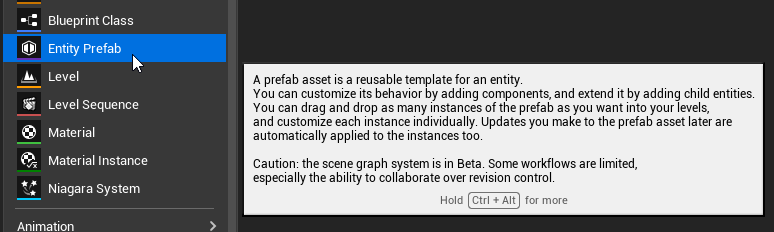
Your prefab has an entity already at its root. Add our test component to it. If you don’t see your new component, click “Compile Verse” in the editor or in VSCode.
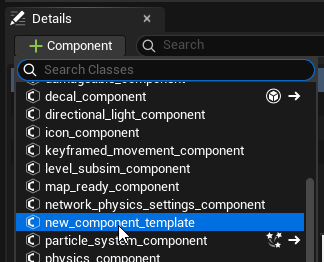
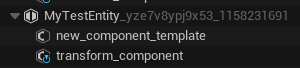
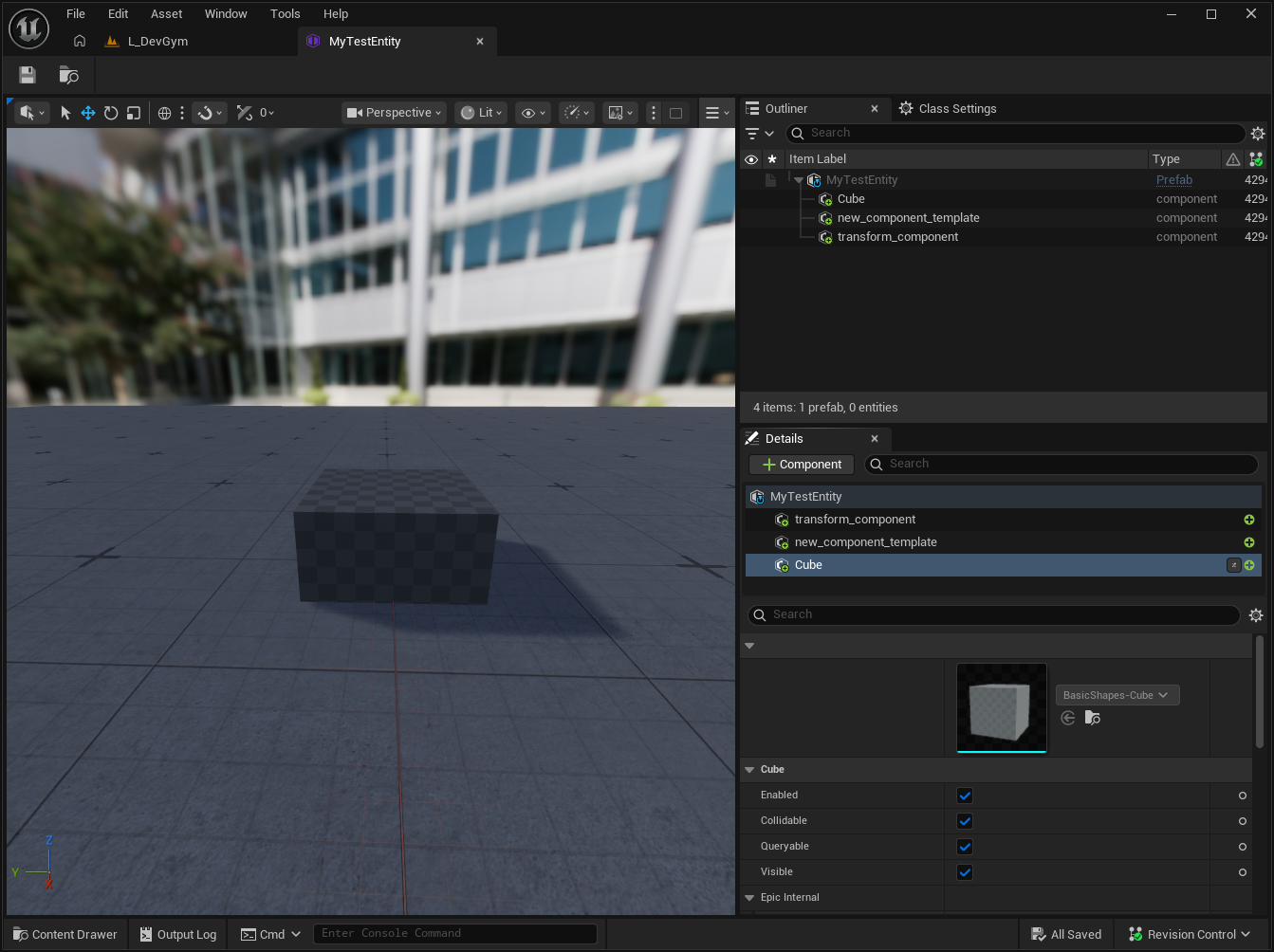
We now have a prefab, holding an entity with our new test component! Now we just need to add it to the level! You should see it in the viewport like this:
Now Play-In-Editor! Nothing will happen in game… but you should see it print to your Output Log.
Filter your Output Log for entries containing LogVerse: and you should see the following:
LogVerse: OnBeginSimulation
LogVerse: OnSimulate
Congrats! Your verse script is compiled and running in ue6-main!
How About Assets
We can’t see our entity yet. There’s nothing visually representing it yet.
If you try to add a mesh_component to it, you’ll see that there’s no options available to add.
We need to add content to our GameFeaturePlugin for Verse to recognize and let us use.
This is where the "EnableSceneGraph": true we added to our .uplugin comes into play.
SceneGraph will scan our plugin for assets it recognizes, and automatically create components for those assets, and expose them to Verse.
This works for assets of type: Texture, Material, MaterialInstance, MetaSound, StaticMesh, SkeletalMesh, and a few other basic types.
Let’s represent our Entity with a basic Cube mesh.
In the engine’s /Engine/Content/BasicShapes, copy the Cube mesh and paste it into your GameFeaturePlugin.
After it exists in the plugin, hit the “Compile Verse” button.
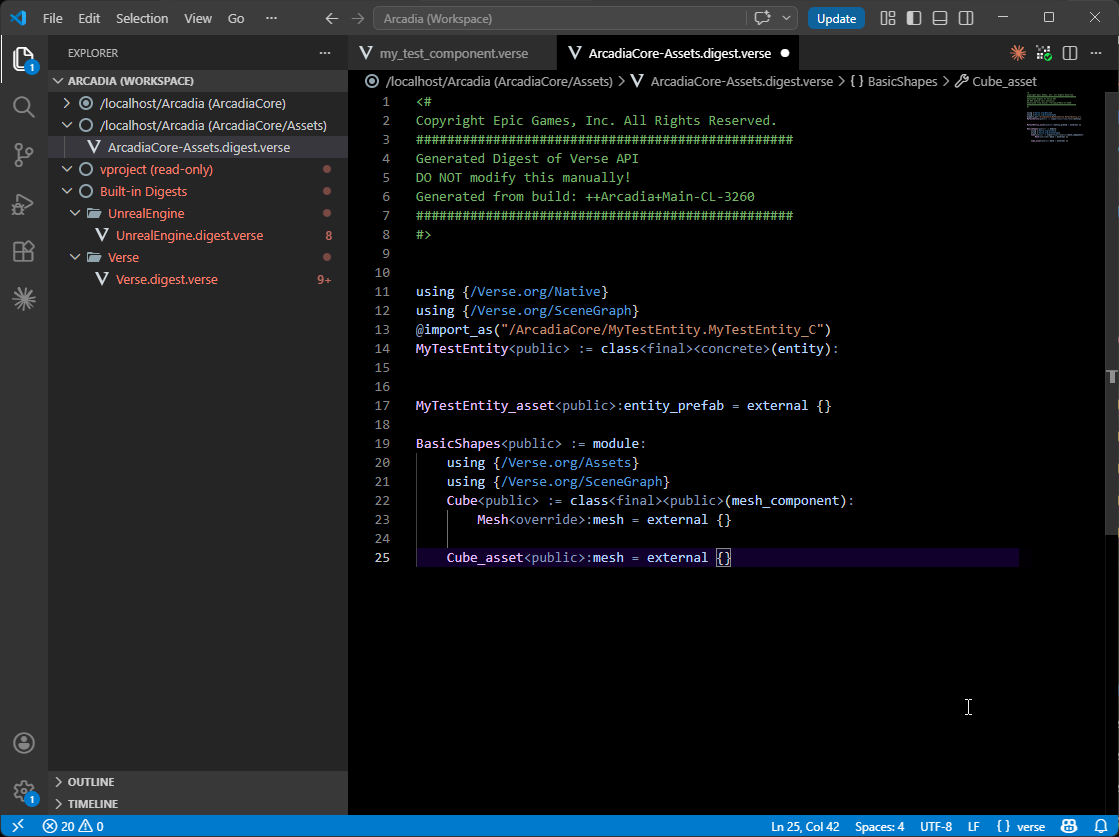
SceneGraph and Verse should now recognize that asset and allow you to use it as a mesh_component on your entity you created earlier.
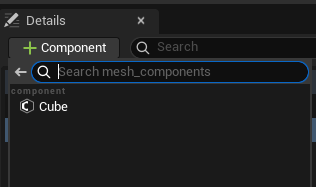
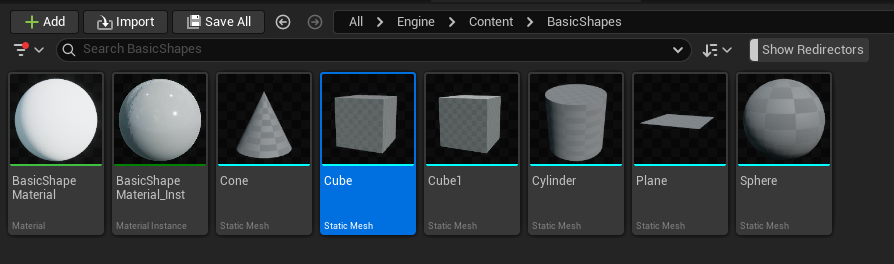
You can also see the asset exposed to Verse by checking your GameFeaturePlugin’s automatically generated digest file.
Congrats!
Nice! You now have Verse code compiling and working, as well as assets exposed to verse. You can get started creating some cool new ideas!
Definitely don’t ship anything with this yet. Everything is extremely alpha and experimental from Epic. APIs can and will change, breaking your code.
Also, a little fun fact, the performance is terrible. There’s no real “SceneGraph representation” of many components like directional_light, mesh_component, skeletal_mesh_component, etc… Guess what it’s doing in the background… spawning an actor. Yup. Almost every component Epic has built just spawns an actor. I’m sure this will eventually change, but it isn’t the amazing SceneGraph future we’re looking for yet.
Have fun!